A billing counter is a small system, not a shopping list. The terminal, receipt printer, scanner and cash drawer all have to work with your billing software and with each other. Buying them one at a time is how most counters end up with a printer that will not open the drawer, or a scanner that cannot read the codes customers show on their phones.
This guide walks through each device in the order we suggest you decide on them.
Start with your billing software
Decide on the software before any hardware, because it limits everything else. Ask your software provider these questions and keep the answers:
- Does it run on Windows, Android or both?
- Which receipt printers and printer command sets does it support?
- Does it need a minimum screen size, memory or a particular processor?
- Does it need to keep working when the internet connection drops?
- Can it print the invoice format your business needs, including GST details?
What a complete counter includes
| Device | Its job | Check first |
|---|---|---|
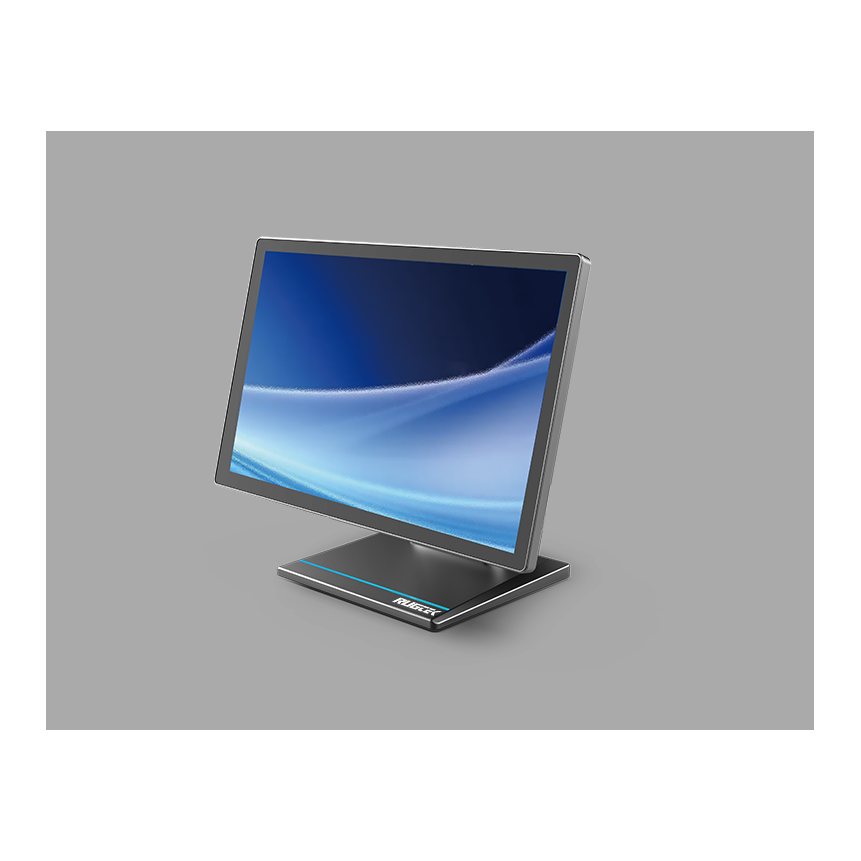
| POS terminal | Runs the billing software | Operating system, screen size, ports |
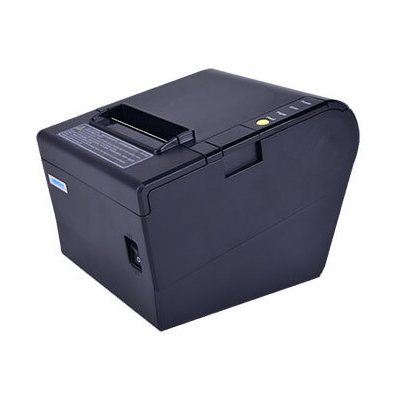
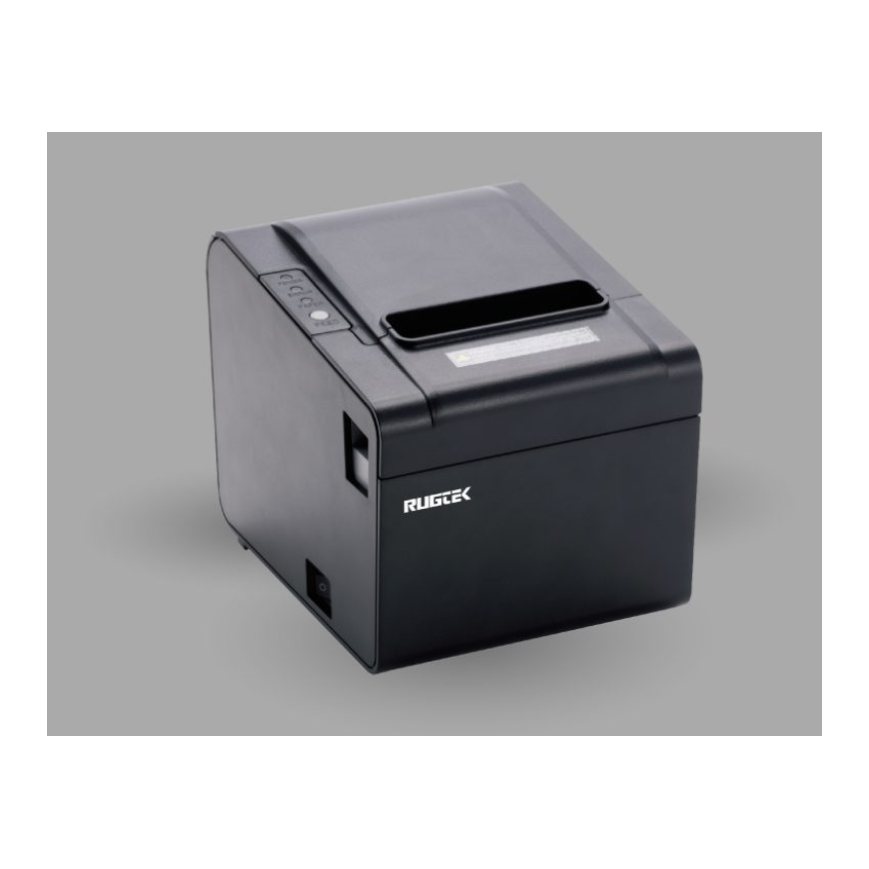
| Receipt printer | Prints bills and kitchen tickets | Paper width, connection, auto cutter |
| Barcode scanner | Reads product and phone codes | 1D or 2D, corded or wireless |
| Cash drawer | Holds cash and opens on sale | Connection to the printer, size |
| Customer display | Shows the bill to the customer | Support in your software |
Choosing the POS terminal
Android or Windows
| Android | Windows | |
|---|---|---|
| Suits | App-based billing, restaurants, small shops | Established desktop billing and accounting software |
| Watch for | Whether your software has an Android version | Enough memory and storage for the software you run |
If your software runs on both, compare how each version handles offline billing and printing before you decide, as the two versions are not always equal.
Which form suits your counter
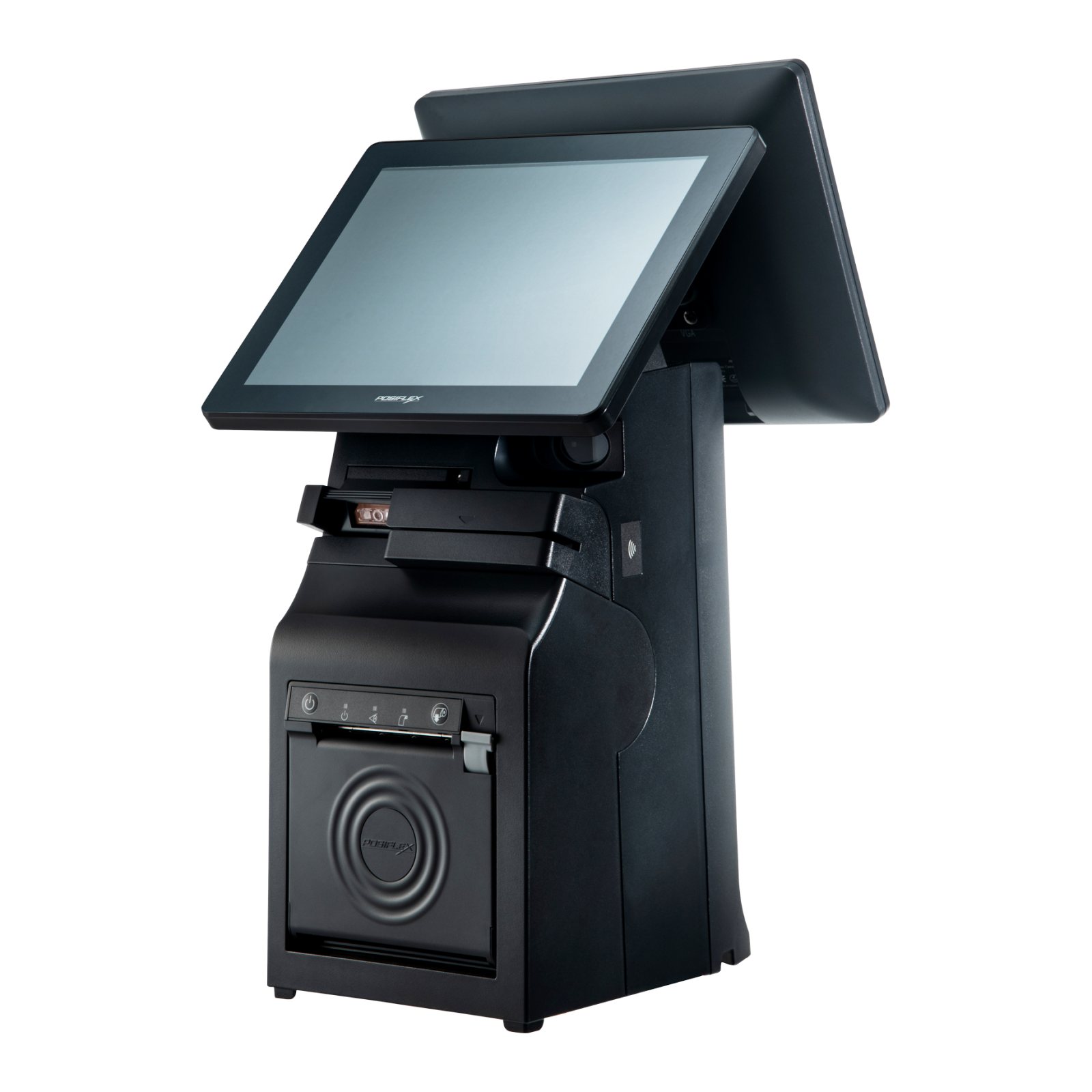
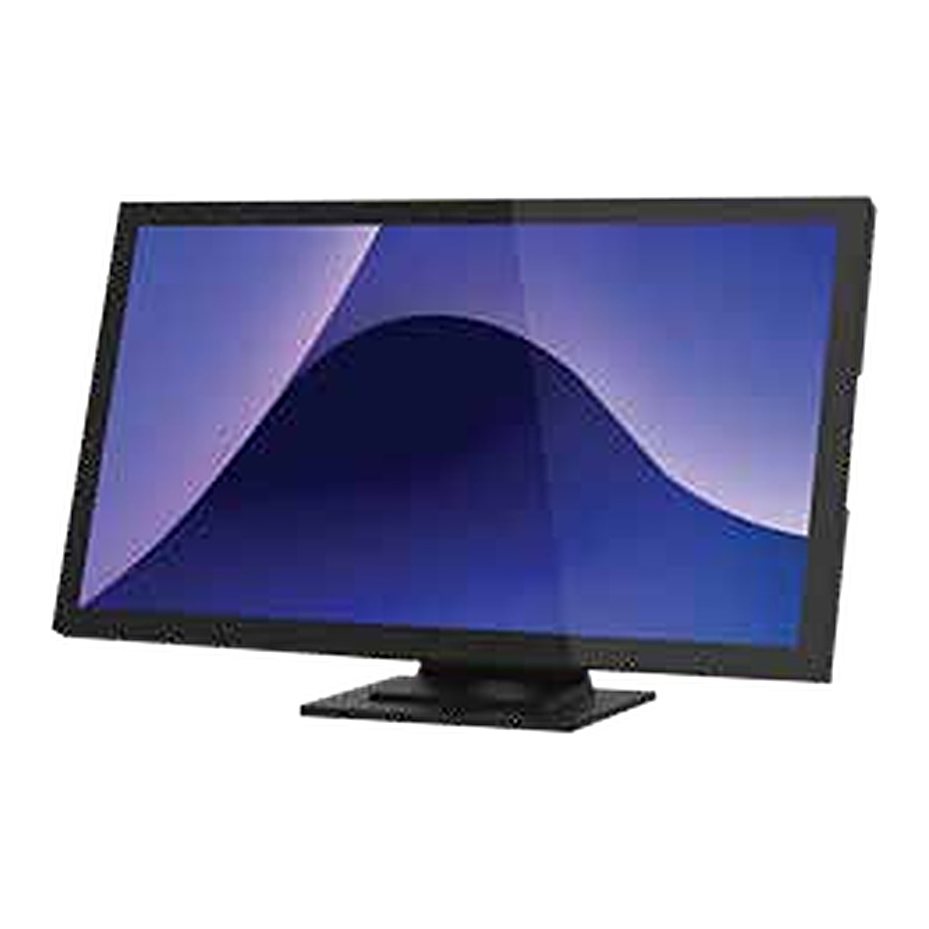
- All-in-one touch terminal: screen and computer in one body, so the counter stays tidy. See all-in-one POS systems.
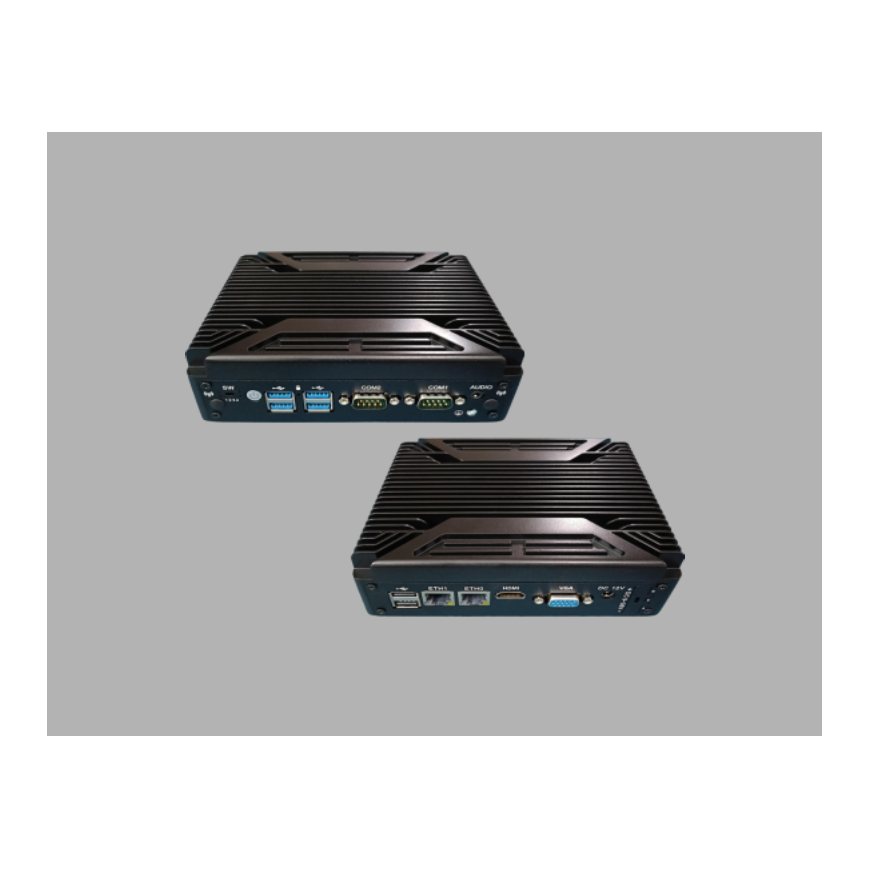
- POS box with a separate screen: useful when you want to choose your own screen or mount the computer out of sight.
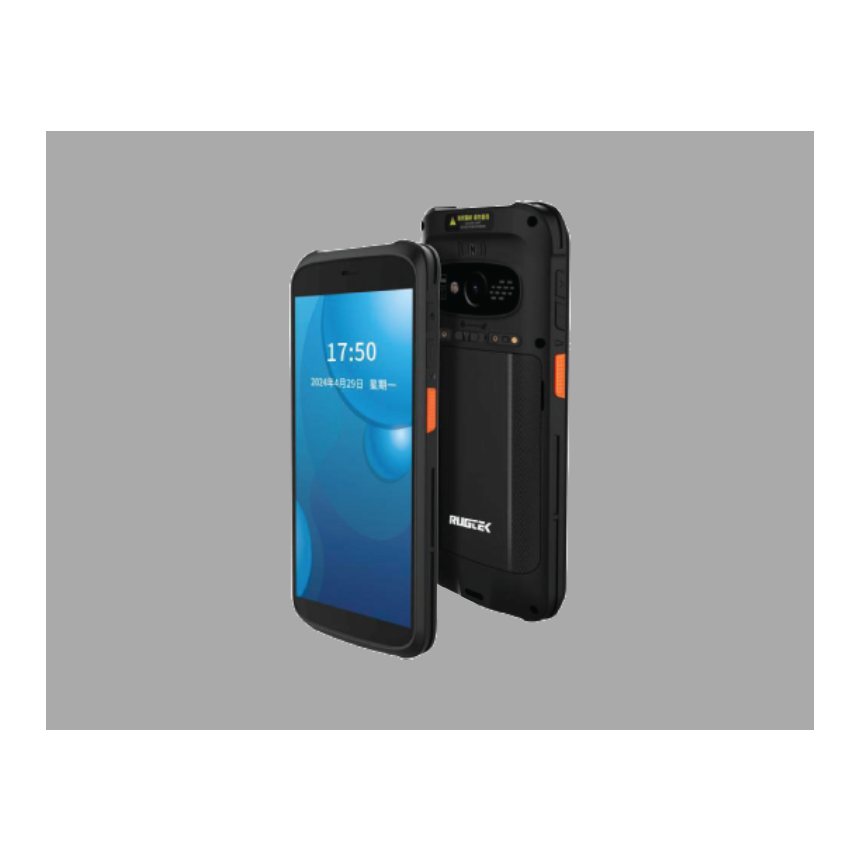
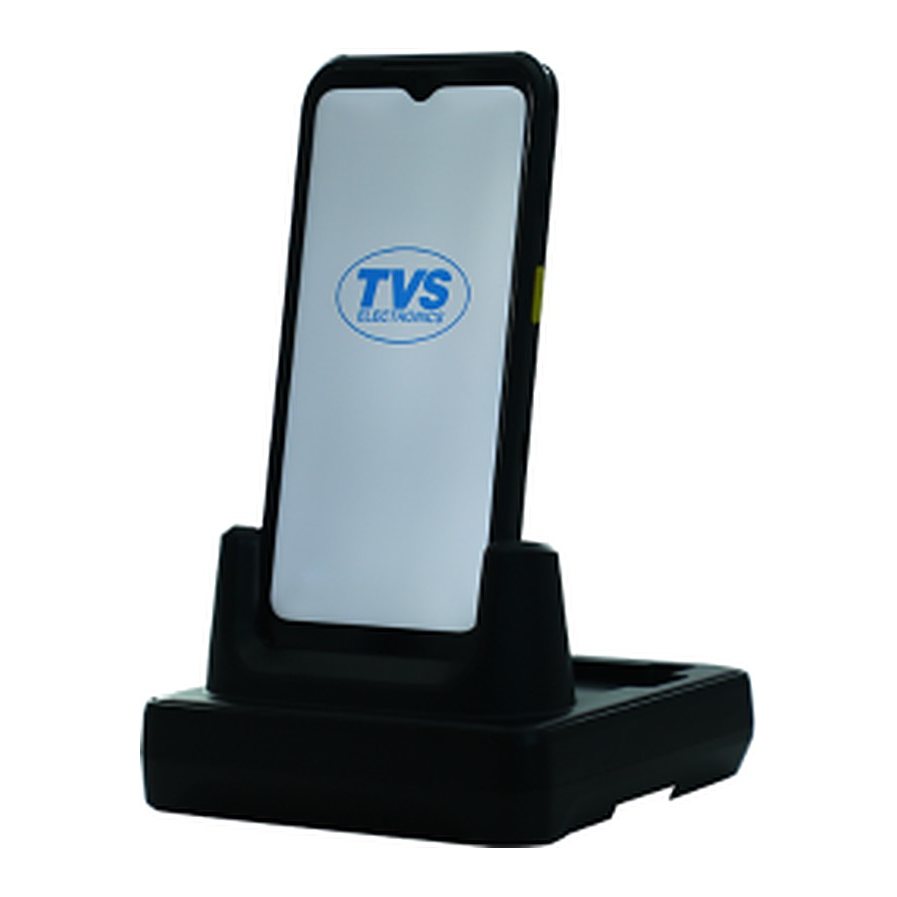
- Mobile POS: for table-side ordering, queue busting or billing away from the counter. See Android POS terminals.
Do not forget the ports
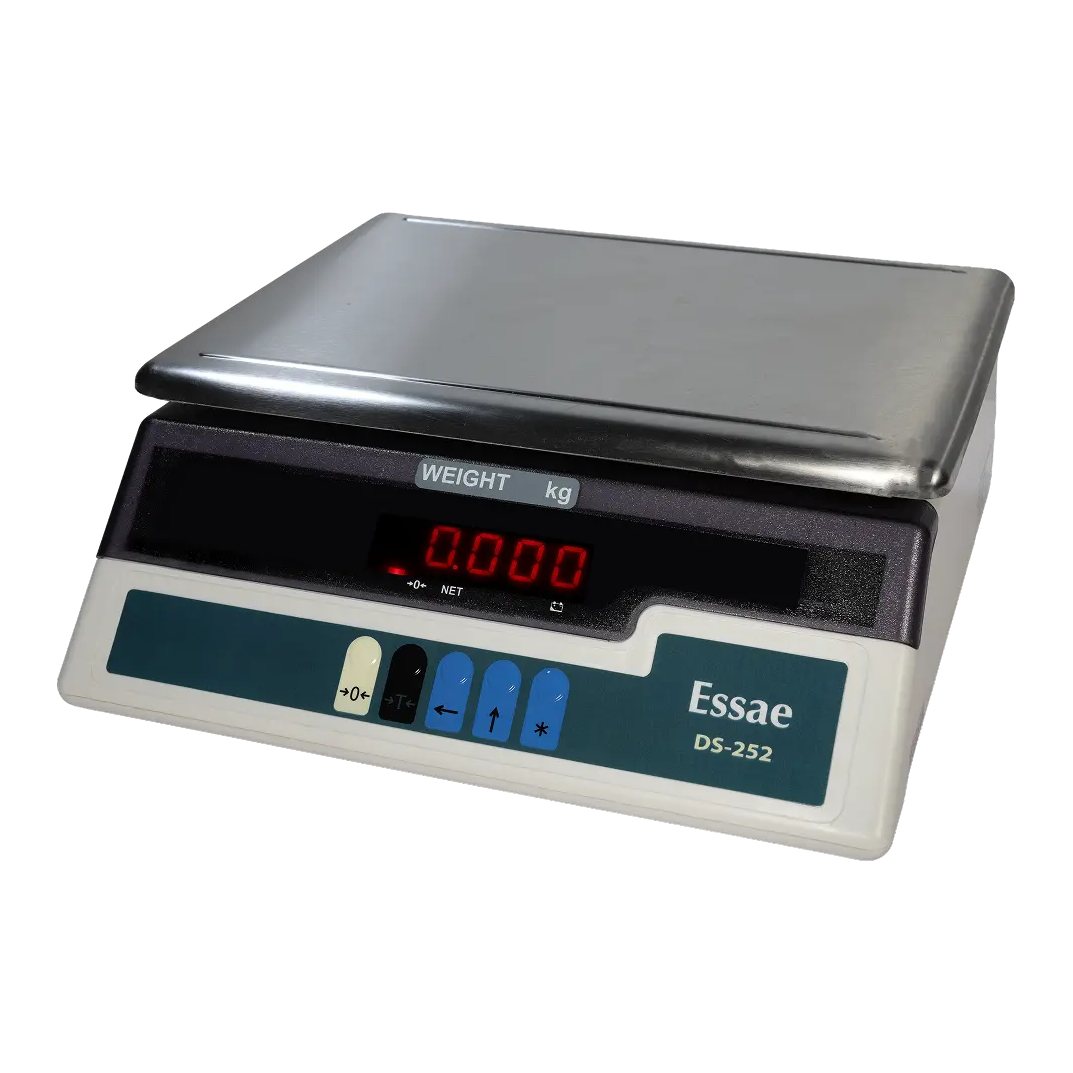
Count what you need to plug in: printer, scanner, drawer, customer display, network and any weighing scale. Then check the terminal has those ports, or plan for a hub the software supports.
Choosing the receipt printer
- Paper width: 80 mm is common for retail and restaurant bills, and fits more columns. 58 mm saves space and suits short bills and portable printers. Confirm which width your bill layout uses.
- Connection: USB is simple for one printer beside the terminal. Ethernet or Wi-Fi suits a printer placed elsewhere, such as a kitchen. Bluetooth suits mobile billing.
- Auto cutter: worth having at any busy counter.
- Drawer port: most cash drawers open through the receipt printer, so check the two can connect.
Thermal receipts can fade with heat and time, so keep a digital copy of any bill you are required to retain.
Choosing the barcode scanner
- 1D or 2D: a 1D scanner reads ordinary product barcodes. A 2D scanner also reads QR codes and codes on phone screens, so it is the safer choice for most new counters.
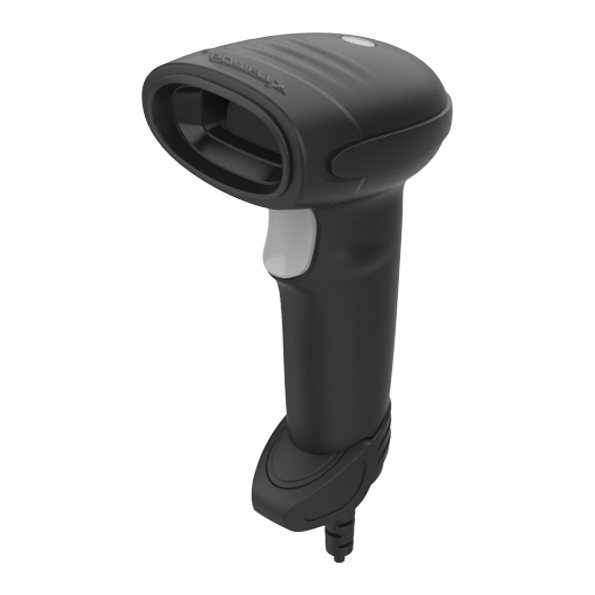
- Handheld or presentation: handheld scanners suit heavy or awkward items. Presentation scanners sit on the counter and leave both hands free, which helps with high item counts.
- Corded or wireless: corded needs no charging. Wireless helps when items are too large to lift to the counter.
See presentation scanners and handheld scanners.
Typical set-ups by business
| Business | Often needs |
|---|---|
| Grocery or supermarket | Terminal, 80 mm printer, presentation 2D scanner, drawer, customer display, and possibly a scale link |
| Restaurant or cafe | Touch terminal, counter printer, network printer in the kitchen or a kitchen display, and mobile POS for table orders |
| Pharmacy | Terminal, printer, and a 2D handheld scanner for small packs and batch codes |
| Fashion or lifestyle store | Terminal, printer, handheld scanner, plus a barcode printer for price and stock tags |
| Field sales or events | Android mobile POS and a portable Bluetooth receipt printer |
These are starting points rather than fixed rules. Your software and daily bill count decide the final list.
Checklist before you order
- Your software provider has confirmed the terminal and printer will work.
- Every device has a matching port or connection.
- The counter has room and power points for everything.
- The bill layout has been checked at your chosen paper width.
- You have counted spare paper rolls and any extra drawers or stands.
- You know who will install it and who to call when something stops working.
Common mistakes to avoid
- Buying hardware before choosing software: this is the most expensive one to fix.
- Choosing a 1D scanner: it cannot read QR codes or most phone screens.
- Ignoring the network: a kitchen printer on a weak connection will miss orders at the busiest time.
- Rolling out everywhere at once: test one complete counter first.
Common questions
Can I connect a printer I already own?
Often yes, if your software supports it and the terminal has the right port. Tell us the printer model and we can check it with you.
Does a small shop need a touch terminal?
Not always. If your software runs well on an existing computer, you may only need a receipt printer, a scanner and a drawer.
Do I need a customer display?
It is useful where customers want to see the amount before paying, and some software can also use it for promotions. Check your software supports it.
Example
Illustrative: a restaurant group opening new outlets would usually standardise one set of terminal, printer and scanner, and test it at one outlet first.
Talk to Mindware
Mindware (Indian Barcode Corporation), based in Dwarka, New Delhi, can help you choose and test the right option. See the TVS TK24 Android Touch POS Terminal or send an export or domestic enquiry to our sales team.