
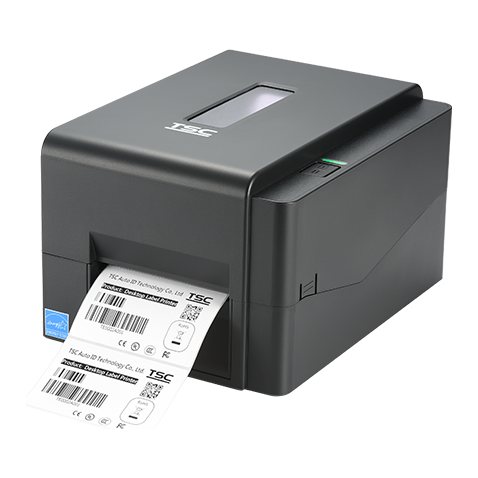
Connect your label printer and start printing
Choose your printer and label size, pick what to print, and get ready-to-use commands and scripts for USB or serial.
Step 1: Choose your printer, label and what to print
Set the options below. The preview and all the scripts update as you type.
What to print
Label preview
Shows the layout only: the barcode and QR pattern here are not scannable. Your printer draws the real ones.
Commands follow the TSC TSPL and Godex EZPL programming manuals and Zebra ZPL. Commands can differ between models, so test one label first, and ask Mindware if your printer behaves differently.
Step 2: Connect the printer
Load your labels and ribbon first, and run the printer’s calibration as its manual describes, so that it finds the gap between labels.
By USB
Computer
USB cable
Label printer
- Install the printer driver from the manufacturer, then connect the USB cable and switch the printer on.
- Open Printers & scanners in Windows, and print a test page.
- Open Printer properties, then Sharing. Share the printer and name it, for example
LabelPrinter. Windows commands use this name. - Enter the same name in Step 1 above.
By serial (RS-232)
ComputerCOM port or USB adapter
RS-232 cable
Label printerSerial port
- Switch both devices off, then connect the serial cable. Use the cable type your printer’s manual specifies, as wiring differs between models.
- No serial port on the computer? Use a USB-to-serial adapter and install its driver.
- Find the port number in Windows Device Manager, under Ports (COM & LPT).
- Print the printer’s self-test or configuration label and note its baud rate, parity, data bits and stop bits. Enter them in Step 1. Both ends must match.
Step 3: Print your first label
- Download
label.txtfrom the Label commands tab in Step 1, and keep it in a folder. - Open Command Prompt in that folder, and run the lines from the Windows tab. One label should print.
- Scan it. Check the barcode with your scanner, not only by eye.
- Print automatically. For automatic printing from your own program, use the Python tab, which sends the same commands. Install Python, then run the install line shown in the script.
Need the weight printed on every label?
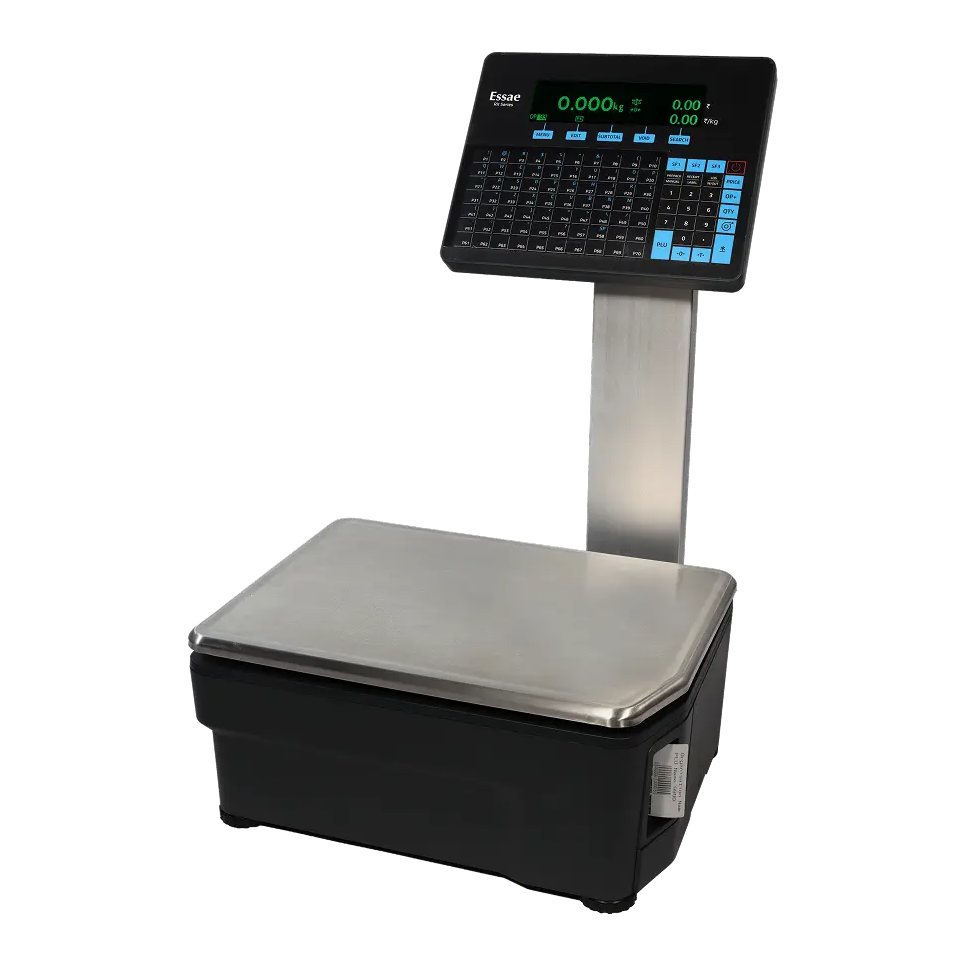
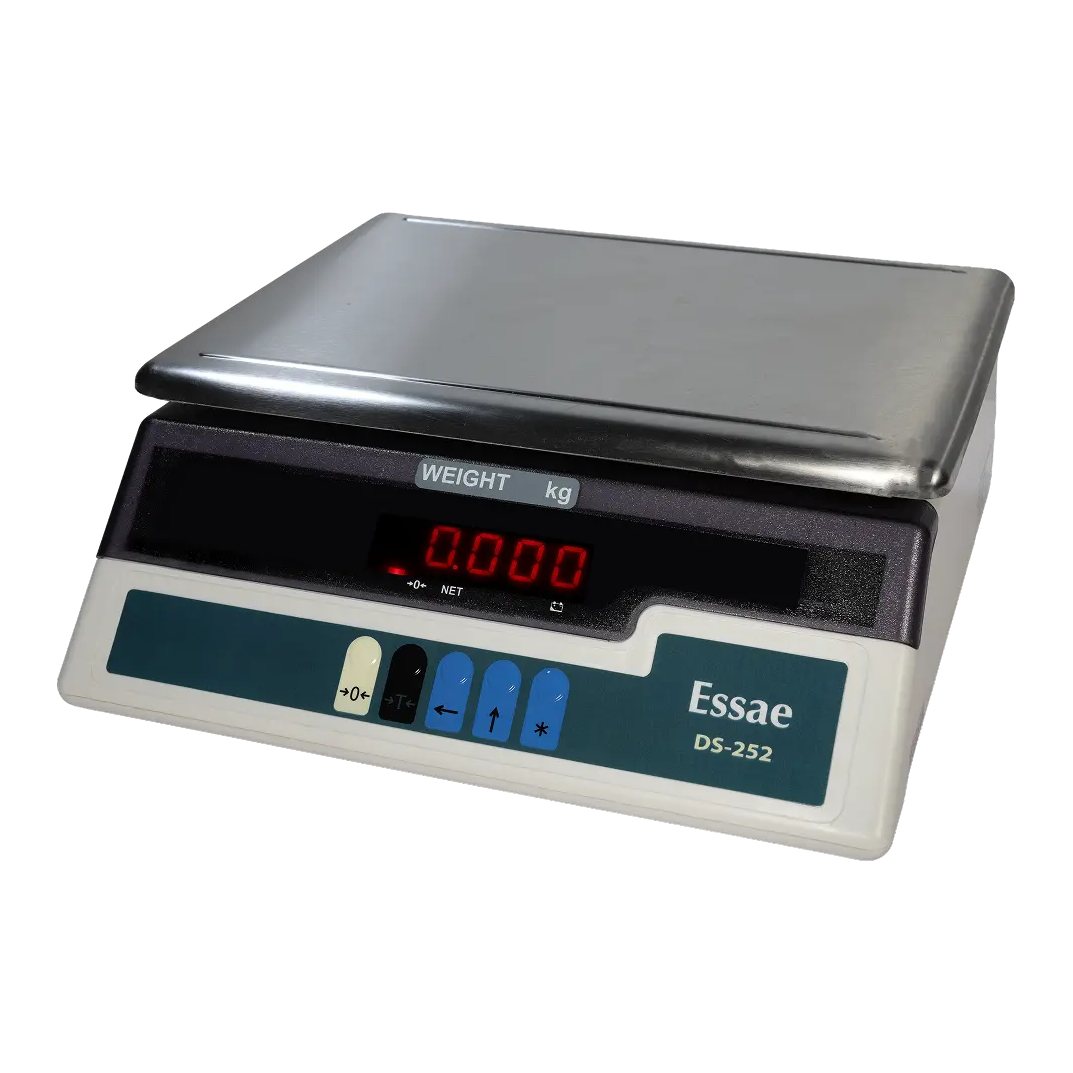
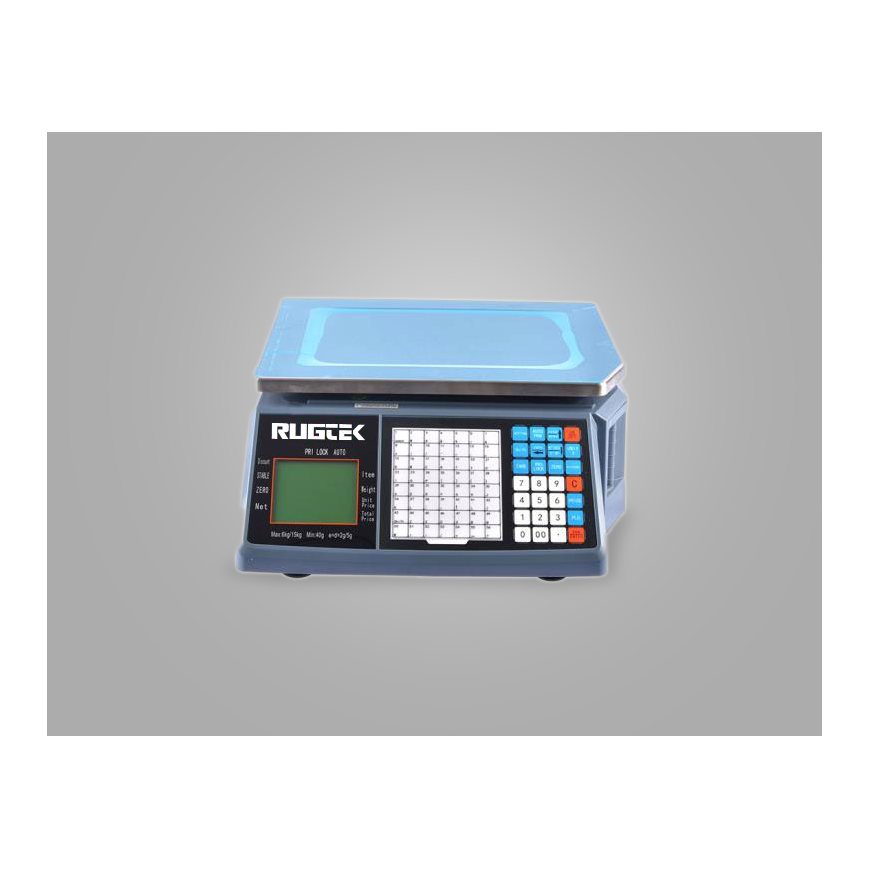
Mindware can supply this as a complete solution: weighing scale, label printer, labels and setup, chosen together for your products. Put the item on the scale, and get a label with its weight, rate and barcode.
Weigh the item
Mindware solution
Label with weight, rate and barcode
No computer at the counter? Ask Mindware about a setup where you only weigh the material, and the label or bill prints by itself in a set design. A label printing scale is another option, with its own printer built in. Weighing scales can be procured directly from Mindware, New Delhi.
What you can print, and what not to print
Good to print
- Product name, size, colour and item code
- MRP or rate, and net weight
- Batch number, and manufacture and expiry dates
- Barcodes such as Code 128, and QR codes
- Your company name and contact details
- Serial numbers and asset tags
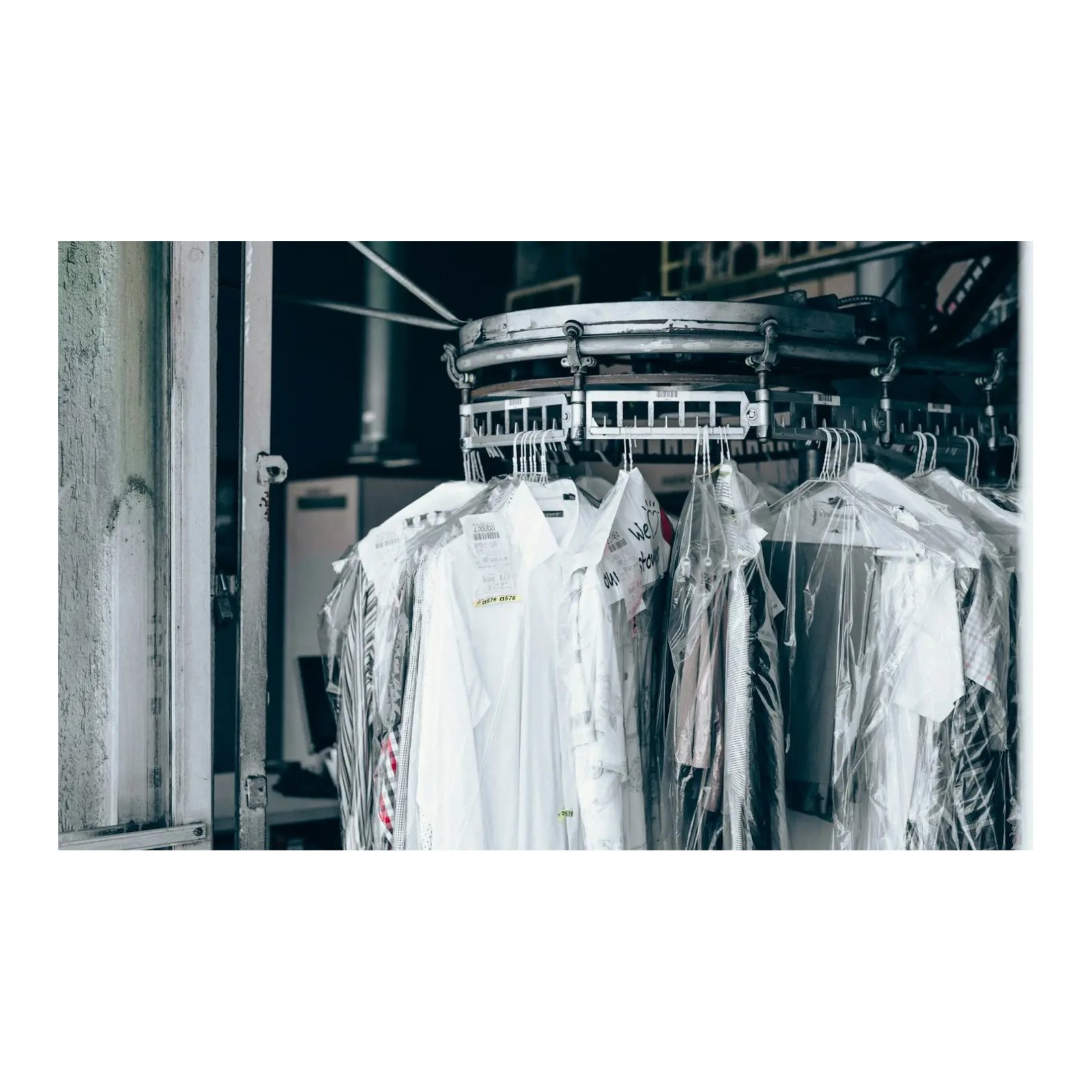
- Order numbers and garment tags for dry cleaning
- Rack, bin and shipping details
Do not print
- Private data: card numbers, passwords, PINs, or a customer’s full address or phone number on garment tags
- EAN or GS1 numbers that have not been assigned to you
- Certification marks or licence numbers you do not hold
- Hand-typed weights where the weight on the scale should be used
- Tiny barcodes, or barcodes touching the label edge: they need clear space on both sides
- Long paragraphs on small labels, which become unreadable
- Direct thermal labels for long-life use, as they can fade with heat and light
Packaged goods and goods sold by weight may have legal labelling rules. Check what applies to your product with the relevant authority.
Choose the label material and the ribbon grade to suit what the label will face.
Do all this from Mindware Infotech software
Mindware Infotech also makes software for these businesses. Tell us what you need to print, and we will confirm what suits your setup.
NextGen POS
For shops and supermarkets, with barcode and weighing scale billing, GST invoices, inventory with batch and expiry, and multi-store stock.
About NextGen POSDryCare dry cleaning software
Developed and marketed by Mindware Infotech. DryCare is copyrighted and a registered trademark of Mindware Infotech.
For dry cleaners and laundries, with garment-wise booking, a barcode tag for every garment, scans at each stage and customer updates.
About the dry cleaning softwareGet the complete set from Mindware
Most setup problems come from parts that were not chosen together. Get the scale, printer, labels, ribbon, cables and setup together from Mindware, and we will match them to your job. Our setup help is for sets bought from us.
See it in practice: an example of a shop printing weighed goods labels with a Mindware set.
Fixing common problems
| What happens | Check this |
|---|---|
| Nothing prints on serial | COM port number, matching baud rate and format at both ends, and the cable type |
| Nothing prints on USB | The printer’s share name, that the printer is not paused or offline, and that the driver is installed |
| Strange characters print | Baud rate mismatch on serial, or commands for another printer brand |
| Print starts in the wrong place, or blank labels feed out | Label size and gap settings, then calibrate the sensor |
| Barcode will not scan | Size, darkness, clear space around it, and print speed |
| Faint print | Ribbon loaded correctly, ribbon grade for the label, and darkness setting |
Common questions
Should I connect by USB or serial?
USB is usually simpler for one printer beside one computer. Serial suits older computers and machines, and longer-standing software.
Do these scripts work on every label printer?
No. Each brand has its own command language: TSC uses TSPL, Zebra uses ZPL, and Godex uses EZPL. Commands can also differ between models, so test one label first.
Can I print the rupee sign or Hindi?
Not with the built-in fonts these scripts use, which print plain English characters. Write Rs. instead, or use a label design program that can send a graphic or a downloaded font.
Can the weight from my scale be printed on labels?
Yes, with the right equipment. Tell Mindware your products and how many labels you print, and we will suggest a complete solution.
Available from Mindware
Printers and scales for this setup
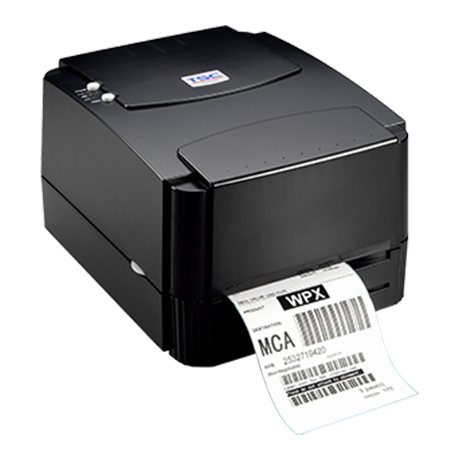
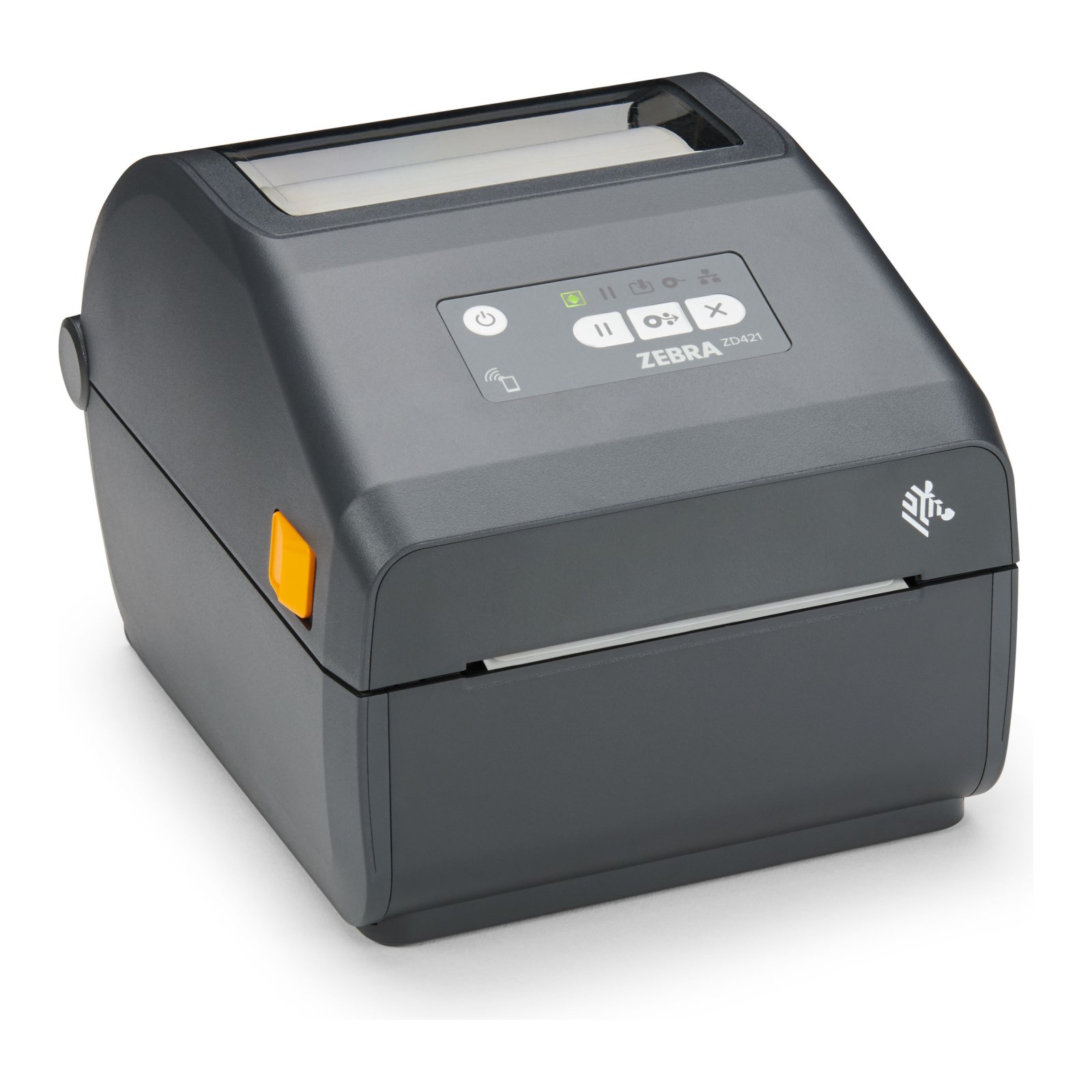
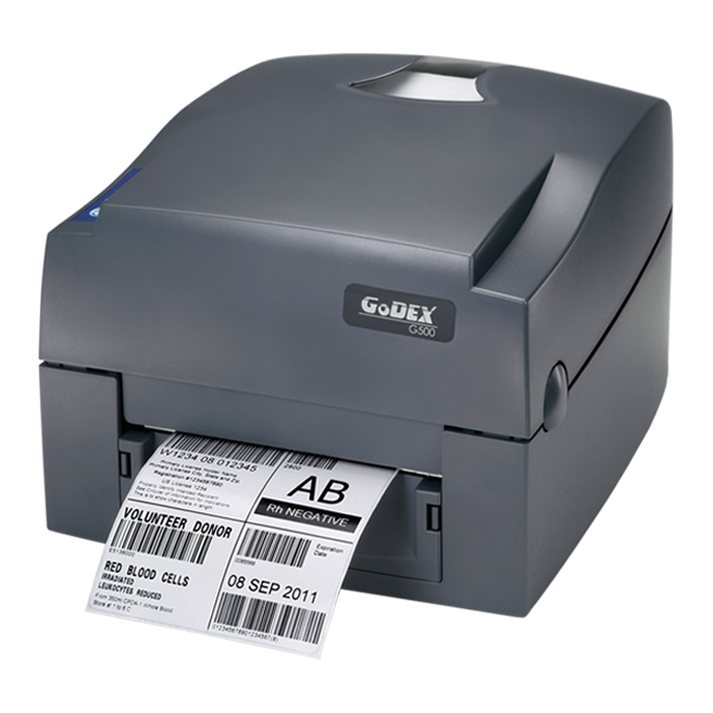
Need help choosing the right product?
Tell us your application, label size and volumes. Our team will recommend suitable printers, scanners, labels and ribbons and send a quotation.